


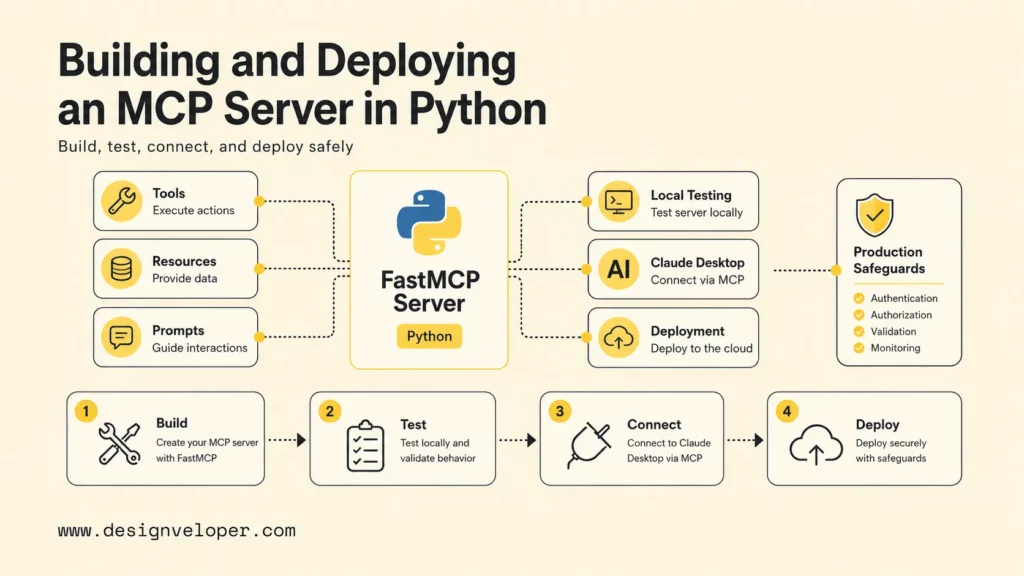
If you want to learn how to build mcp server python projects, start with a small FastMCP server that exposes one safe tool and one read-only resource, test it locally with MCP Inspector, then connect it to Claude Desktop or another MCP client. A Python MCP server is useful because it gives an AI assistant a structured way to call approved functions, read controlled resources, and work with external systems without giving the model direct access to everything.
This tutorial builds a simple weather-style MCP server in Python and then turns that example into a deployment checklist. The tutorial follows the official Model Context Protocol build-server flow, which uses uv, the mcp[cli] package, httpx, and FastMCP from the official Python SDK.
The goal is practical: by the end, you will understand how MCP tools, resources, prompts, local testing, Claude Desktop configuration, deployment choices, and production safeguards fit together.
What Is An MCP Server In Python?
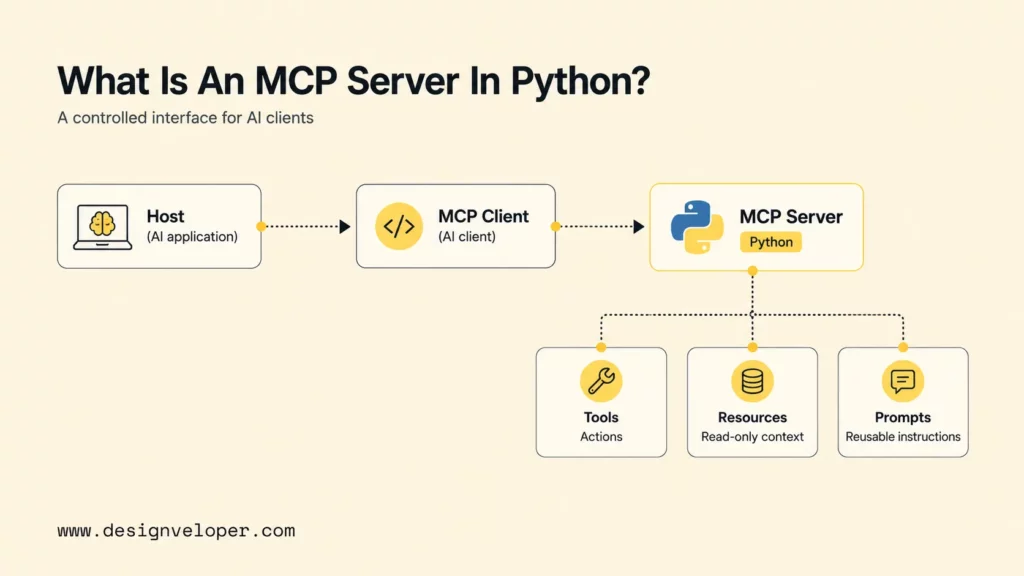
An MCP server in Python is a program that exposes controlled capabilities to MCP-compatible AI clients. The server can provide tools the assistant may call, resources the assistant may read, and prompts the assistant may use. Python is a good fit because many AI teams already use Python for APIs, data processing, automation, retrieval, and LLM workflows.
The official MCP architecture describes a host, client, and server model. The host is the user-facing AI application. The client manages the connection to a server. The server exposes tools, resources, and prompts over the protocol. A Python MCP server usually sits behind the client boundary and translates Python functions or data sources into structured capabilities.
The server should not be a free-form backdoor into your machine or database. A good build to Python MCP server has narrow tools, typed inputs, clear docstrings, predictable outputs, authentication where needed, and careful logging. The model can decide when a tool is useful, but the server decides what is allowed.
What You Will Build In This Tutorial
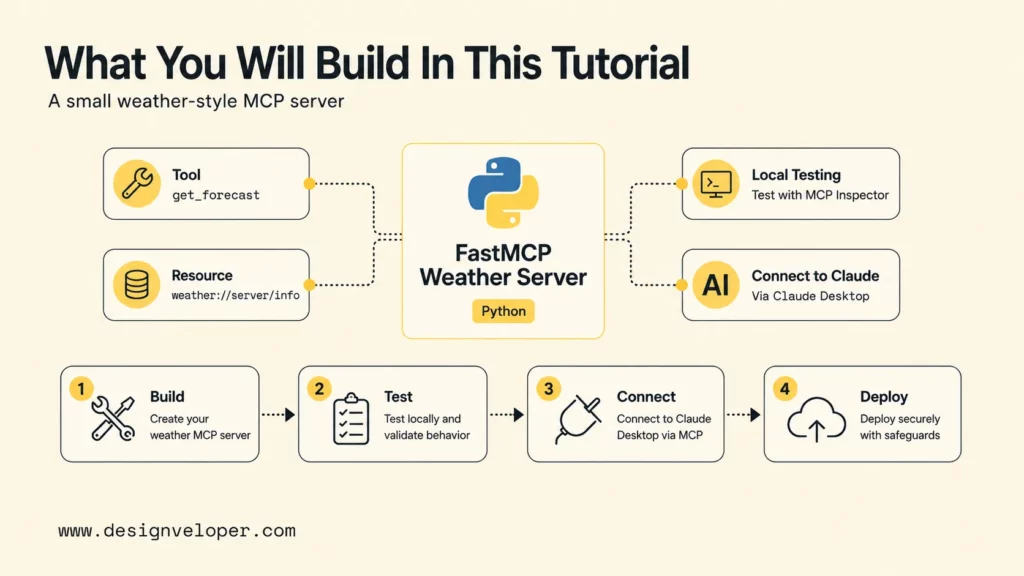
This tutorial builds a small Python MCP server that exposes one weather tool and one weather resource. The example is intentionally compact so the architecture stays visible. The same shape can later be adapted to a product database, internal documentation search, support-ticket lookup, analytics query, or workflow automation tool.
The tutorial covers:
- Setting up a Python project with
uv. - Installing
mcp[cli]andhttpx. - Creating
server.py. - Initializing FastMCP.
- Adding one tool with
@mcp.tool(). - Adding one resource with
@mcp.resource(). - Running the server over
stdio. - Testing the server locally with MCP Inspector.
- Connecting the server to Claude Desktop.
- Preparing the server for deployment and production use.
The example stays read-oriented by design. Write-capable actions should come later, after authentication, authorization, audit logging, and human approval are designed.
Why FastMCP Is The Best Place To Start
FastMCP is the best place to start because it lets Python developers create MCP tools and resources with a decorator-based style similar to familiar Python web frameworks. The official build-server guide uses from mcp.server.fastmcp import FastMCP and notes that FastMCP uses type hints and docstrings to generate tool definitions.
FastMCP reduces the amount of protocol code a beginner needs to write. Instead of manually constructing every schema, the developer writes normal Python functions with clear names, type hints, and docstrings. The SDK then exposes those functions as MCP capabilities.
FastMCP is also useful for production-minded teams because it encourages contracts. Function names, parameter types, docstrings, return types, and resource URIs become part of the interface that AI clients inspect. A sloppy function name or vague docstring can make the model call the wrong tool, so FastMCP pushes developers to describe behavior clearly.
1. Set Up The Python Environment
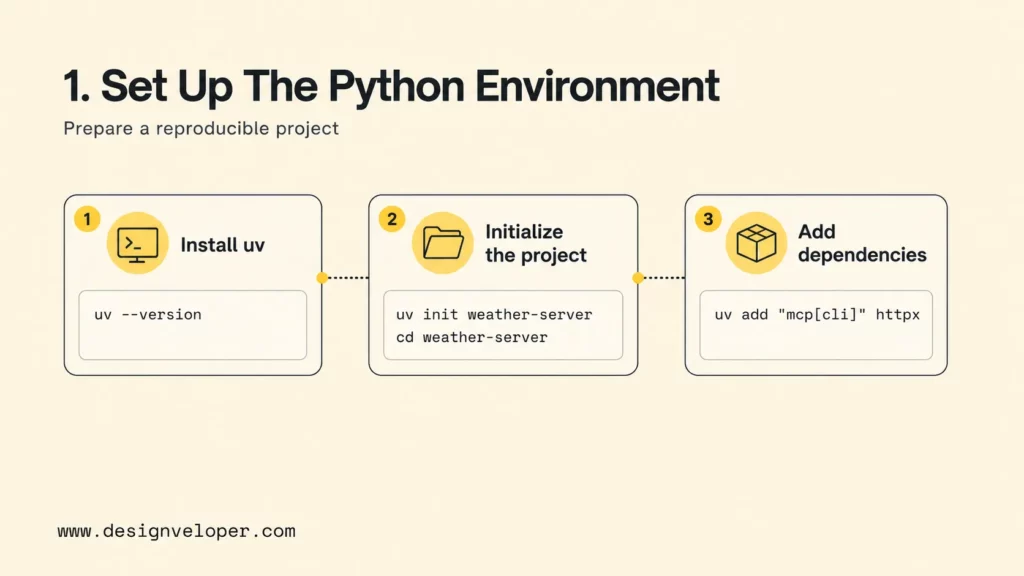
The Python environment build should be reproducible before the MCP server is connected to a client. Use uv so the project has predictable dependency installation and command execution.
Install uv
uv is a Python package and project manager. Install it using the official instructions for your operating system, then confirm it works:
If the command prints a version, the shell can find uv. If the command fails, fix the PATH issue before creating the MCP server. Claude Desktop and MCP Inspector will need to run the same command later.
Initialize The Project
Create a new project for the server and enter the folder:
uv init weather-servercd weather-serverThe project folder should contain the Python project metadata and a clean place for server code. Keeping each MCP server in its own folder makes deployment, logs, secrets, and dependency updates easier to manage.
Add mcp[cli] And Dependencies
Add the MCP CLI package and httpx. The official tutorial uses httpx because the weather example calls the National Weather Service API:
uv add "mcp[cli]" httpxThe mcp[cli] dependency gives you the Python MCP SDK and command-line support. The httpx dependency handles async HTTP requests in the example. A real server might also need database drivers, cloud SDKs, authentication libraries, validation helpers, or observability tools.
2. Create The MCP Server
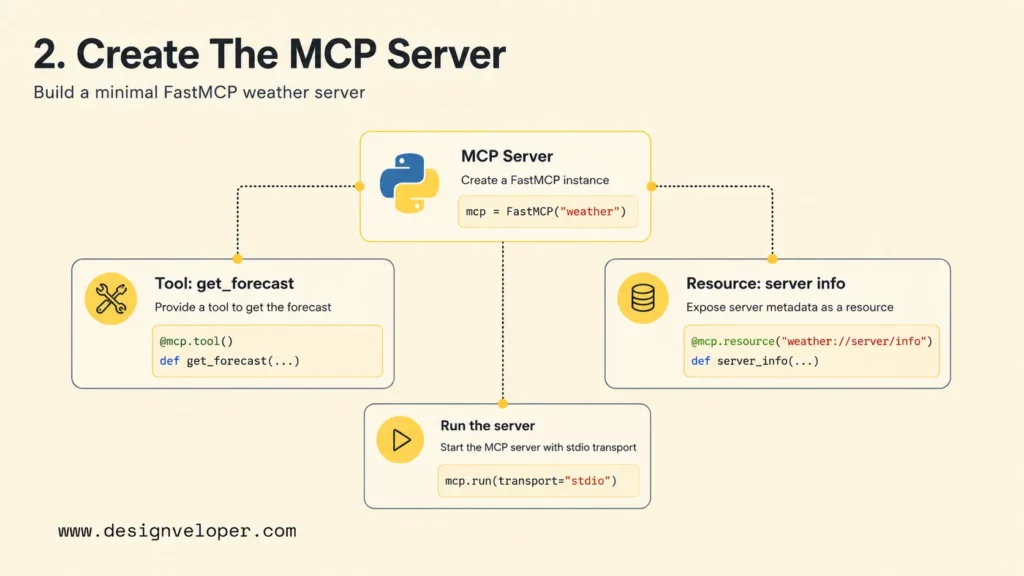
The first version of the MCP server should be small enough to inspect. A minimal weather server needs a file, a FastMCP instance, one helper function, one tool, one resource, and a stdio run command.
Create server.py
Create the server file:
On Windows PowerShell, use:
New-Item server.py -ItemType FileOpen server.py in your editor. The rest of this section builds the file step by step.
Initialize The FastMCP Server
Start with imports, a FastMCP instance, and a couple of constants:
from typing import Any import httpxfrom mcp.server.fastmcp import FastMCP mcp = FastMCP("weather") NWS_API_BASE = "https://api.weather.gov"USER_AGENT = "weather-mcp-server/1.0"The server name should be short and descriptive. A production server name such as support-tools, project-docs, or finance-readonly is easier to reason about than a vague name such as tools.
Add A Tool With @mcp.tool()
Add one tool that an AI client can call. The example below accepts latitude and longitude, calls a public weather API, and returns a concise forecast. Keep the docstring specific because the model uses tool descriptions to decide when the function is relevant.
async def make_nws_request(url: str) -> dict[str, Any] | None: """Make a request to the National Weather Service API.""" headers = {"User-Agent": USER_AGENT, "Accept": "application/geo+json"} async with httpx.AsyncClient() as client: try: response = await client.get(url, headers=headers, timeout=30.0) response.raise_for_status() return response.json() except Exception: return None @mcp.tool()async def get_forecast(latitude: float, longitude: float) -> str: """Get a short weather forecast for a latitude and longitude.""" points_url = f"{NWS_API_BASE}/points/{latitude},{longitude}" points_data = await make_nws_request(points_url) if not points_data: return "Unable to fetch forecast location data." forecast_url = points_data["properties"]["forecast"] forecast_data = await make_nws_request(forecast_url) if not forecast_data: return "Unable to fetch forecast data." periods = forecast_data["properties"]["periods"][:3] return "\n".join( f"{period['name']}: {period['detailedForecast']}" for period in periods )This tool is read-only. That makes the tutorial safer. For write-capable tools, add stricter input validation, authentication, permissions, and human confirmation.
Add A Resource With @mcp.resource()
Add a simple read-only resource. Resources are useful when the client needs context rather than an action:
@mcp.resource("weather://server/info")def server_info() -> str: """Return basic information about this weather MCP server.""" return "This MCP server exposes weather forecast tools for demo use."A real resource might expose documentation snippets, project metadata, account status, policy text, or database records. Keep resources scoped and avoid exposing private data by default.
Run The Server With stdio
Add the run block at the bottom of server.py:
if __name__ == "__main__": mcp.run(transport="stdio")stdio is common for local MCP servers because the client starts the process and communicates over standard input and output. The practical rule is important: avoid writing logs to stdout for stdio servers because protocol messages also use stdout.
3. Understand The Key Components
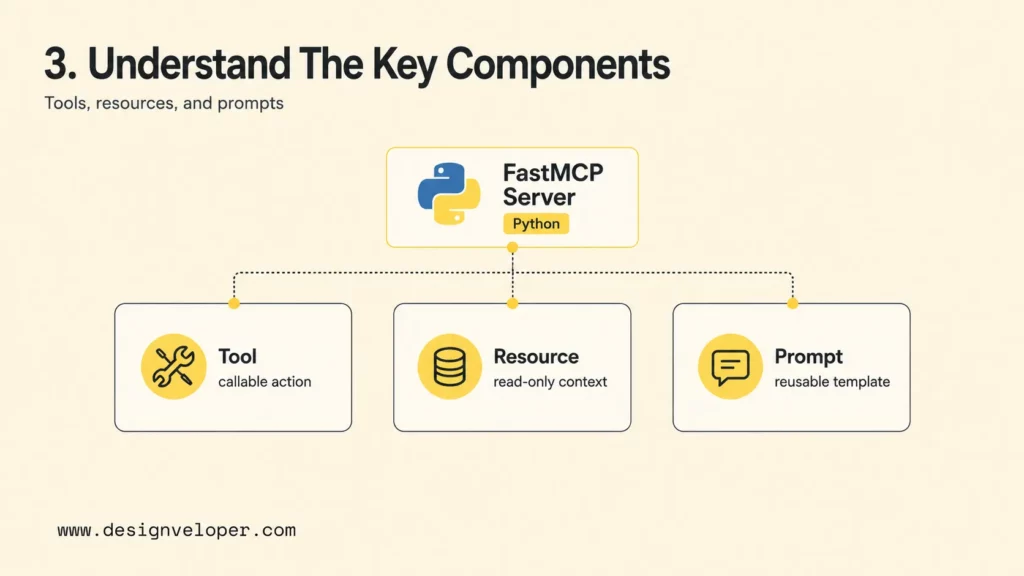
The key MCP server components are tools, resources, and prompts. The Python SDK makes each component feel like a normal Python function, but each component has a different role in the protocol.
@mcp.tool()
@mcp.tool() exposes a callable action. A tool may search, calculate, fetch, create, update, or trigger something. The official MCP concepts describe tools as model-controlled functions that the LLM can invoke when appropriate.
Tool names, type hints, and docstrings are part of the product interface. A tool named update_customer_status needs a stronger contract than a tool named get_forecast because it can change business data. Use clear names and narrow permissions.
@mcp.resource()
@mcp.resource() exposes read-oriented context. A resource can represent a file, a document, a database record, an API response, or another piece of structured data. Resources are usually safer than write-capable tools, but sensitive resources still need access control.
Resource URIs should be predictable. A pattern such as company://policy/leave or project://status/current is easier to manage than ad hoc strings. Predictable URIs help teams document and test access rules.
@mcp.prompt()
@mcp.prompt() exposes reusable prompt templates. Prompts are useful when a server can provide a standard instruction pattern, such as “summarize this support ticket,” “review this code change,” or “prepare a project status update.”
Use prompts when the server owner wants to guide how a client should use a tool or resource. Do not hide policy decisions inside prompts alone. Security and permission checks should still live in server logic or surrounding infrastructure.
4. Testing The Server Locally
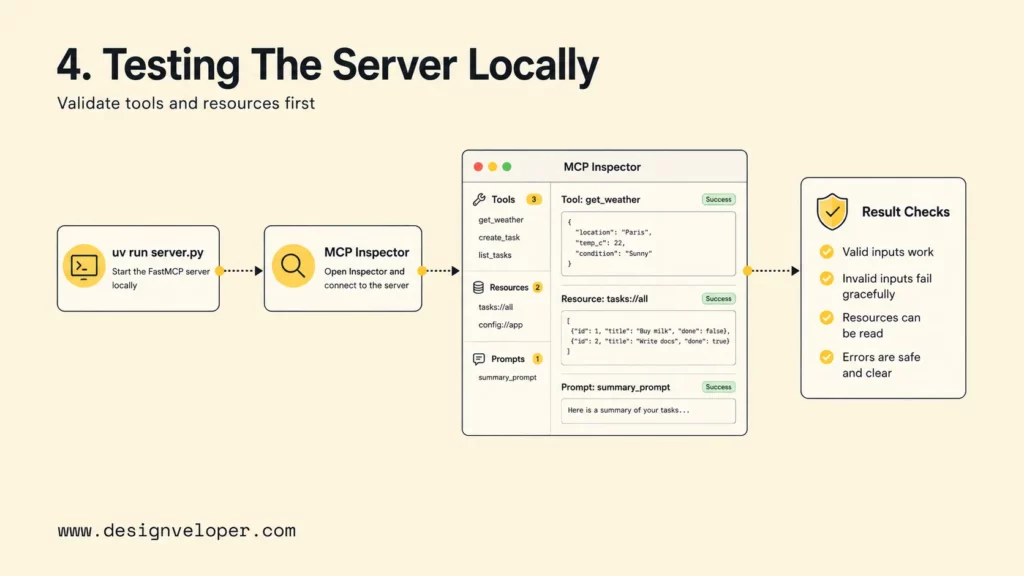
Local testing confirms that the server starts, declares capabilities, exposes the expected tools and resources, and returns useful outputs. Test locally before connecting the server to Claude Desktop or any production-like client.
Run The Server With uv run
Run the server directly first:
A stdio server may appear quiet because it is waiting for protocol messages. If the process exits immediately, check imports, dependency installation, syntax errors, and Python version compatibility.
Launch MCP Inspector
MCP Inspector is the official visual testing tool for MCP servers. The official Inspector docs show that it runs through npx and can inspect locally developed Python servers. Start the Inspector with your local server:
npx @modelcontextprotocol/inspector uv run server.pyThe Inspector commonly opens a browser-based debugger at http://localhost:5173. If the port is already in use, follow the terminal output for the actual URL.
Verify Tools And Resources In The Debugger
Use the Inspector tabs to verify the server. The Tools tab should show get_forecast with its input schema. The Resources tab should show weather://server/info. Test valid inputs and invalid inputs.
Good local tests include:
- Call
get_forecastwith a valid latitude and longitude. - Call
get_forecastwith invalid values and confirm the server fails safely. - Read the
weather://server/inforesource. - Restart the server and confirm it reconnects reliably.
- Check that no secrets, stack traces, or noisy logs are written into user-facing responses.
5. Connecting The Server To Claude Desktop
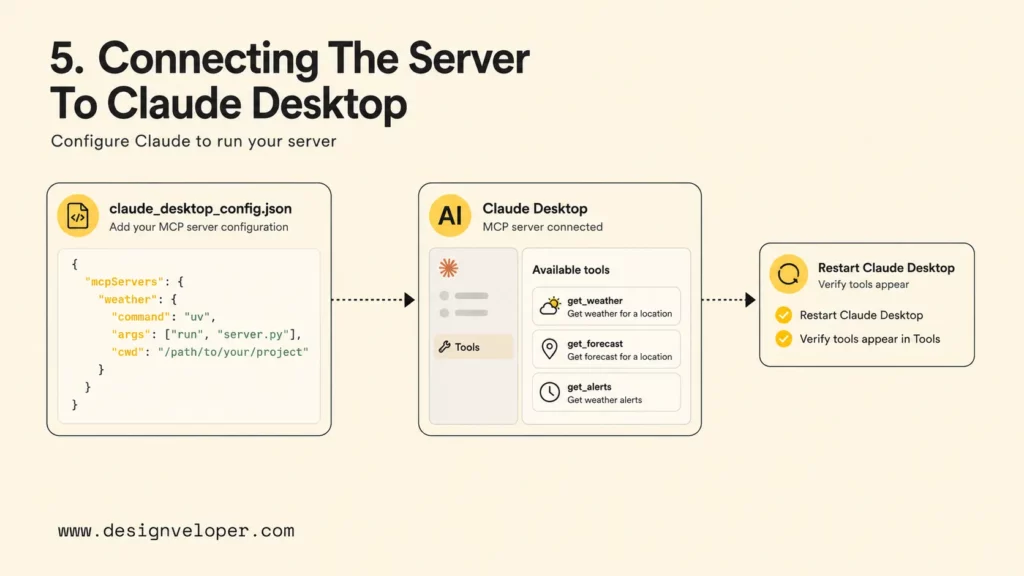
Connecting a Python MCP server to Claude Desktop lets Claude use the server from a chat session. The current Claude Help Center notes that Desktop Extensions now make local server installation easier, while manual local server configuration remains useful for development and custom workflows.
Find The Claude Desktop Config File
For manual local server setup, find the Claude Desktop configuration file. Common paths are:
- macOS:
~/Library/Application Support/Claude/claude_desktop_config.json - Windows:
%APPDATA%\Claude\claude_desktop_config.json
Claude Desktop versions can change how extension and local server settings are exposed. If the app UI provides a Developer or Extensions settings panel, use that UI to find or edit the configuration safely.
Add The mcpServers Configuration
Add a server entry that runs uv in your project folder. Use absolute paths so Claude Desktop can find the project reliably:
{ "mcpServers": { "weather": { "command": "uv", "args": [ "--directory", "/absolute/path/to/weather-server", "run", "server.py" ] } }}On Windows, either use escaped backslashes or forward slashes in the path. If uv is not on the system PATH visible to Claude Desktop, use the full path to the uv executable.
Restart Claude Desktop And Verify The Tools Appear
Restart Claude Desktop after saving the config. Then open a new chat and check whether the weather server appears as an available integration. Ask Claude to use the weather tool with a known coordinate pair and confirm the response comes from your server.
If the server does not appear, check the JSON syntax, command path, project path, Python dependencies, logs, and whether the server writes anything unexpected to stdout. Most local MCP failures come from environment differences between a terminal session and the desktop app process.
6. Deploying The MCP Server
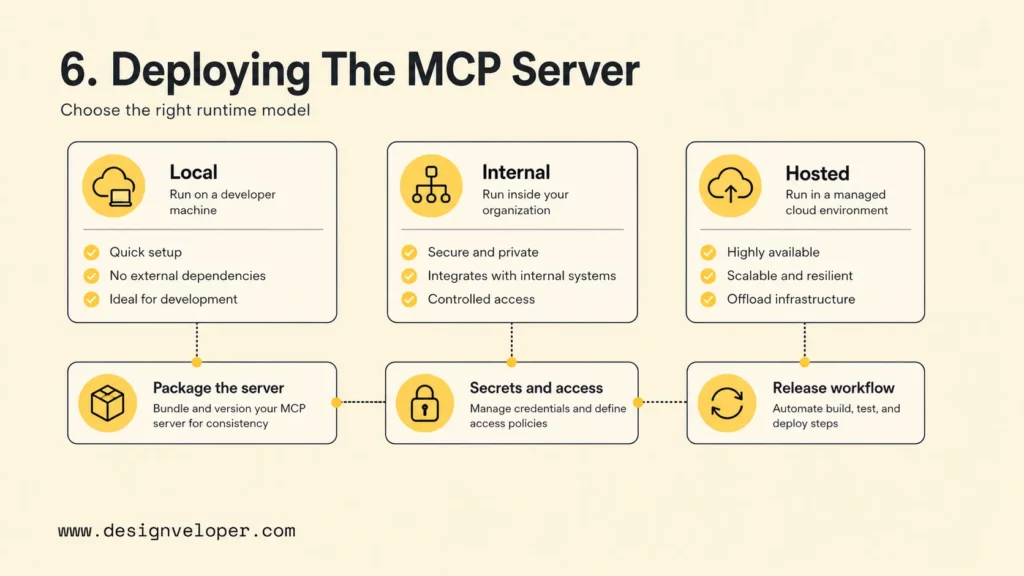
Deploying an MCP server means deciding where the server runs, how clients authenticate, how secrets are managed, and how changes are released. A local demo can use stdio, but production systems often need a clearer deployment model.
Choose A Local, Internal, Or Hosted Deployment Model
A local deployment is useful for developer tools, filesystem access, private desktop workflows, and experimentation. An internal deployment is useful when company assistants need access to internal systems behind the network. A hosted deployment is useful when multiple clients or users need the same MCP server through a managed service.
The deployment model should follow the data. If the server exposes sensitive customer data, internal documents, or write-capable workflows, choose an environment where authentication, authorization, logging, and network controls can be enforced.
Package The Server For Repeatable Environments
Package the server so another developer or deployment environment can reproduce it. At minimum, commit project metadata, dependency lock files, server code, tests, and example configuration. Avoid committing secrets, access tokens, local credentials, or personal paths.
A production-ready package should include a README with startup commands, required environment variables, example client configuration, test commands, known limitations, and escalation paths. The server should also pin dependency versions where stability matters.
Configure Runtime Settings, Secrets, And Access
Configure runtime settings through environment variables or a secrets manager. Do not hard-code API keys in server.py. Separate development, staging, and production settings.
Access rules should be explicit. If the server can update a ticket, write to a database, send a message, or trigger a workflow, define who can use that tool, what input is allowed, and when human approval is required.
7. Making The Server Production-Ready
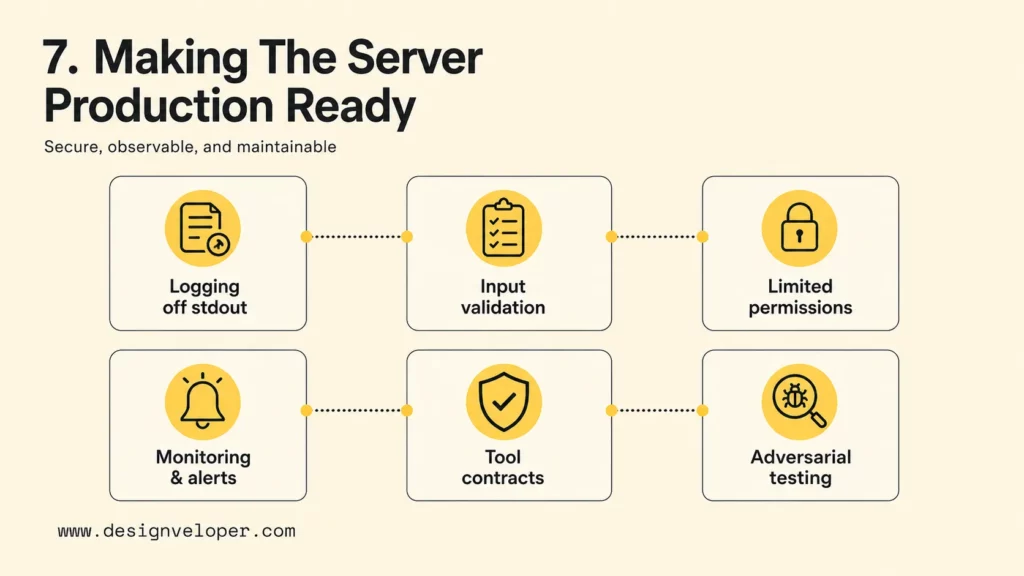
A production-ready MCP server needs more than a working demo. The server must be reliable, observable, secure, and maintainable because AI clients may call tools repeatedly and with unexpected inputs.
Use this production checklist before exposing the server to real users:
- Keep logging off stdout for stdio servers: use stderr or a file-based logger so protocol messages remain clean.
- Add validation and safer error handling: reject invalid inputs, return helpful errors, and avoid leaking stack traces or secrets.
- Limit exposed capabilities and permissions: prefer read-only tools first, then add write actions with explicit approvals.
- Plan for monitoring, versioning, and maintenance: track tool calls, latency, failures, dependency updates, and client compatibility.
- Document every tool contract: include expected inputs, outputs, side effects, rate limits, and owner contacts.
- Test with adversarial prompts: check whether the model can be tricked into calling tools with unsafe or unexpected parameters.
Security research around MCP continues to evolve because the protocol standardizes tool access but does not remove trust decisions. Teams should treat server admission, dependency review, tool permissions, and user approval as part of the architecture, not as optional polish.
Where Python MCP Servers Create The Most Value
Python MCP servers create the most value when an AI assistant needs controlled access to live data, developer workflows, or business actions. Python is especially useful when the server needs to call APIs, transform data, orchestrate scripts, query databases, or reuse existing AI and data libraries.
Internal AI Assistants
Internal AI assistants can use Python MCP servers to search policies, retrieve account details, summarize documents, or generate structured reports. The server should expose narrow tools that match real workflows, such as search_policy, get_project_status, or summarize_ticket.
Designveloper’s public Song Nhi virtual assistant project is a useful example of assistant-style product thinking because the product centers on conversational workflows and user-friendly task handling. The public page does not claim MCP usage. The relevant lesson is that useful assistants need workflow context, safe actions, and clear user review.
Developer Tools And Coding Workflows
Developer tools can use Python MCP servers to inspect repositories, run safe checks, fetch documentation, summarize logs, query issue trackers, or prepare release notes. The server should separate read-only inspection from write-capable actions such as committing code, opening pull requests, or deploying services.
For developer workflows, local servers are often practical because the user wants controlled access to files and tools on a machine. The risk is that local tools may have broad permissions, so careful scoping matters.
Business Systems Connected To Live Data And Actions
Business systems can use Python MCP servers to connect AI assistants to CRMs, ERPs, support tools, analytics databases, HR systems, finance workflows, or document repositories. The MCP server becomes the boundary between model reasoning and business execution.
Designveloper’s public AI development services show why this boundary matters in real delivery. AI assistants need more than a model call. They need product discovery, integration design, permissions, testing, monitoring, and maintenance so AI actions fit business operations.
FAQs About How To Build A MCP Server With Python
What Is FastMCP In Python?
FastMCP is a high-level Python abstraction in the MCP Python SDK that lets developers define MCP servers with decorators, type hints, and docstrings. FastMCP makes it easier to expose Python functions as tools, resources, and prompts without manually writing low-level protocol code.
What Is The Difference Between A Tool And A Resource In MCP?
A tool is a callable function that can perform an action or compute a result. A resource is read-oriented context that a client can inspect, such as a document, record, file, or API response. Tools can have side effects, so tools need stricter validation and permission checks than simple read-only resources.
How Do You Test A Python MCP Server Locally?
Test a Python MCP server locally by running it with uv run server.py, then launching MCP Inspector with npx @modelcontextprotocol/inspector uv run server.py. Use the Inspector to view tools, resources, schemas, and execution results. Test invalid inputs, empty responses, restart behavior, and error handling before connecting the server to an AI client.
How To Host A MCP server?
Host an MCP server by choosing a local, internal, or hosted deployment model based on the data and actions exposed. Local servers fit personal developer workflows. Internal servers fit company tools and private systems. Hosted servers fit shared assistants and managed integrations. Add authentication, authorization, logging, secrets management, and monitoring before production use.
How To Build A MCP Server With Cursor?
To build an MCP server with Cursor, create the Python server project the same way, then use Cursor as the coding environment while following the official MCP SDK and client configuration. After the server works locally, connect it to an MCP-compatible client or Cursor workflow that supports MCP server configuration. Keep the server contract, permissions, and testing process the same regardless of editor.