


What is JavaScript? JavaScript is the programming language that makes web pages respond, update, validate forms, run animations, call APIs, and behave like real applications instead of static documents. HTML gives a page its structure, CSS controls how that structure looks, and JavaScript adds the logic that reacts when a visitor clicks, types, scrolls, submits a form, or receives new data from a server.
For beginners, JavaScript is often the first language that makes coding feel visible. A few lines can open a menu, calculate a total, show an error message, or change a page without a full reload. For professional teams, the same language also supports larger front-end applications, back-end services through Node.js, testing workflows, build tools, and automation scripts.
This guide explains JavaScript in plain English, then walks through how JavaScript fits with HTML and CSS, what JavaScript does on a page, how browser execution works, what a function is, how to add scripts correctly, and how beginners can start learning without getting lost.
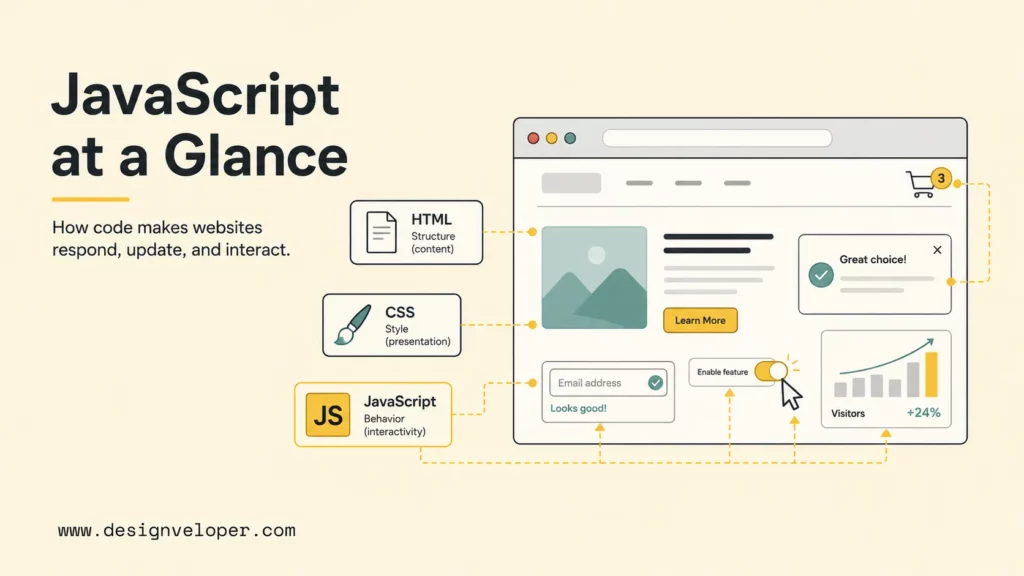
What Is JavaScript?
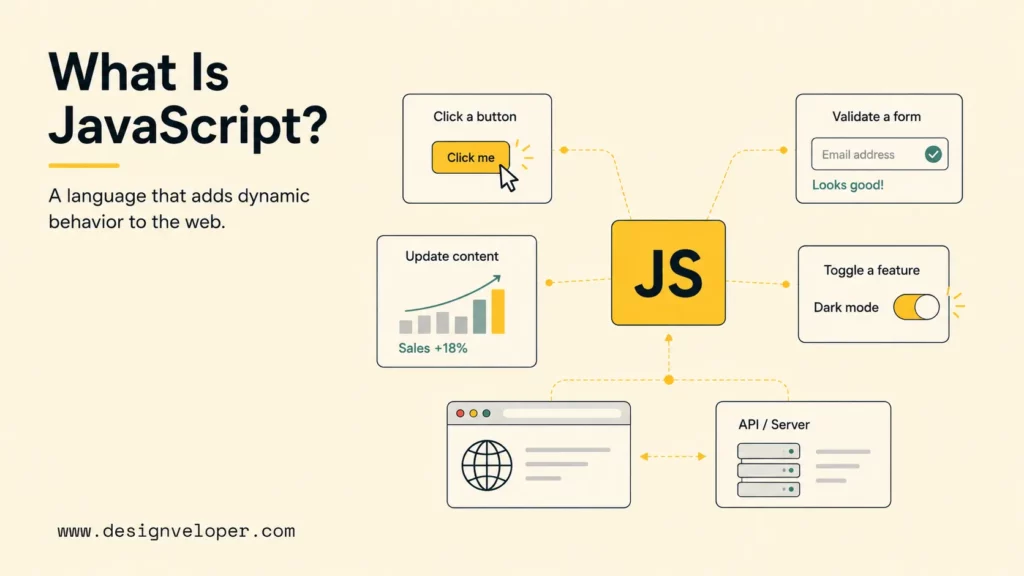
JavaScript is a cross-platform programming language used to add dynamic behavior to websites and web applications. The MDN JavaScript introduction describes JavaScript as a language that can make pages interactive with features such as animations, clickable buttons, and popup menus. JavaScript also runs outside the browser in environments such as Node.js asynchronous JavaScript runtime, where developers build APIs, command-line tools, real-time applications, and server-side services.
It is a programming language because JavaScript has variables, conditions, loops, functions, objects, arrays, modules, and error handling. It is also a scripting language in everyday web vocabulary because scripts often run inside a host environment, such as a browser, and control host-provided objects such as the document, buttons, forms, storage, network requests, and browser events.
The technical standard behind modern JavaScript is ECMAScript. The ECMAScript 2025 language specification defines the core language features, while browsers add Web APIs such as the DOM, Fetch, Storage, Canvas, Web Audio, and Geolocation. That split matters for learners: JavaScript syntax is one layer, and browser APIs are another layer that JavaScript can call.
A useful mental model is simple: JavaScript is the decision-making layer of the web page. JavaScript can read state, make a decision, and change what the user sees or what the application sends to a server. A price calculator, password strength meter, search autocomplete box, accordion FAQ, interactive chart, and checkout validation flow all depend on that decision-making layer.
JavaScript remains central because the web is still the most universal software platform. The Stack Overflow Developer Survey 2025 continued to list JavaScript among the most widely used technologies by professional and learning developers, which reflects how often teams need JavaScript for front-end work, full-stack frameworks, browser automation, and tooling.
How JavaScript Fits With HTML And CSS
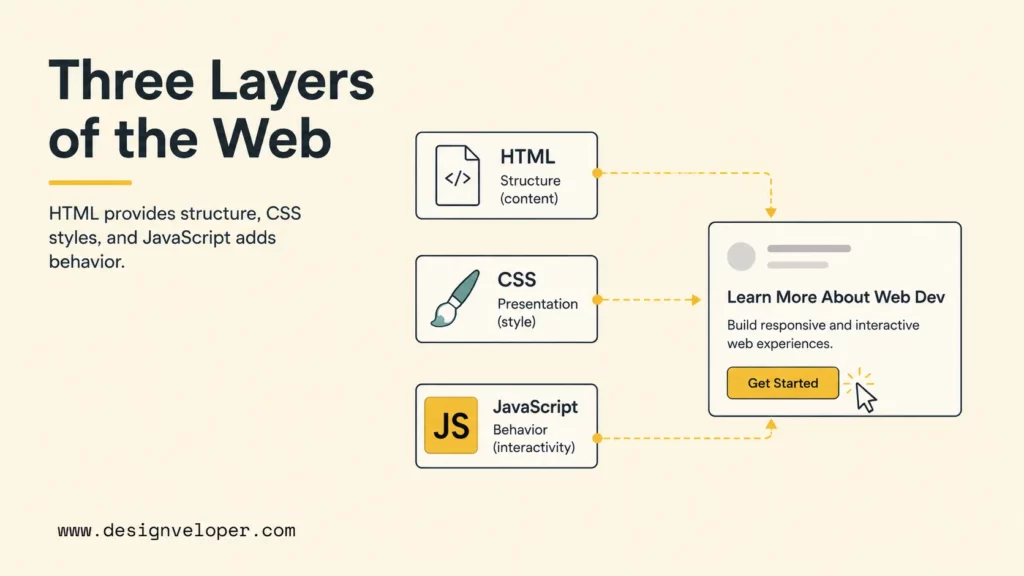
JavaScript works best when beginners understand the three-layer model of the web: HTML is content structure, CSS is visual presentation, and JavaScript is behavior. A button can exist with HTML, look polished with CSS, and become useful with JavaScript when a click opens a dialog, submits a request, or changes visible content.
HTML Provides Structure
HTML defines the elements on the page. Headings, paragraphs, buttons, inputs, images, forms, tables, navigation links, and sections all come from HTML. The browser parses HTML into a document tree, then JavaScript can inspect or change that tree through the Document Object Model.
For example, an HTML button may look like a small static element in the file:
<button id="save-button">Save changes</button>That button has meaning even before JavaScript runs. The button can receive focus, be clicked, and be read by assistive technology when the HTML is written semantically. JavaScript should enhance that structure instead of replacing it with fragile click targets that have no semantic meaning.
CSS Controls Presentation
CSS controls the visual design: layout, colors, spacing, typography, responsive behavior, transitions, and hover states. A JavaScript beginner should not use JavaScript for every visual change. CSS is usually better for styling because browsers optimize CSS rendering and because styles stay easier to maintain when they live in stylesheets.
A practical pattern is to let JavaScript toggle a class and let CSS define the appearance. For example, JavaScript can add an is-open class to a menu, while CSS decides whether the menu is visible, animated, or positioned differently on mobile screens. The separation keeps JavaScript focused on state and CSS focused on presentation.
JavaScript Adds Behavior And Interactivity
JavaScript adds the behavior that answers user input. It can listen for a click, check whether a form field is empty, fetch search results, update a shopping cart count, or show a password message as the user types. The MDN DOM events reference lists many browser events, from mouse and keyboard interactions to form, drag-and-drop, media, and animation events.
The three technologies often cooperate in a clean flow:
| Layer | Main job | Beginner example |
|---|---|---|
| HTML | Defines content and controls | A newsletter form with an email input and submit button |
| CSS | Controls layout and visual states | A red border around an invalid email field |
| JavaScript | Responds to events and changes state | A message that appears when the email format is wrong |
That division is not only academic. Production web teams keep structure, style, and behavior separated because the separation improves accessibility, testing, debugging, and long-term maintenance.
What JavaScript Actually Does On A Web Page
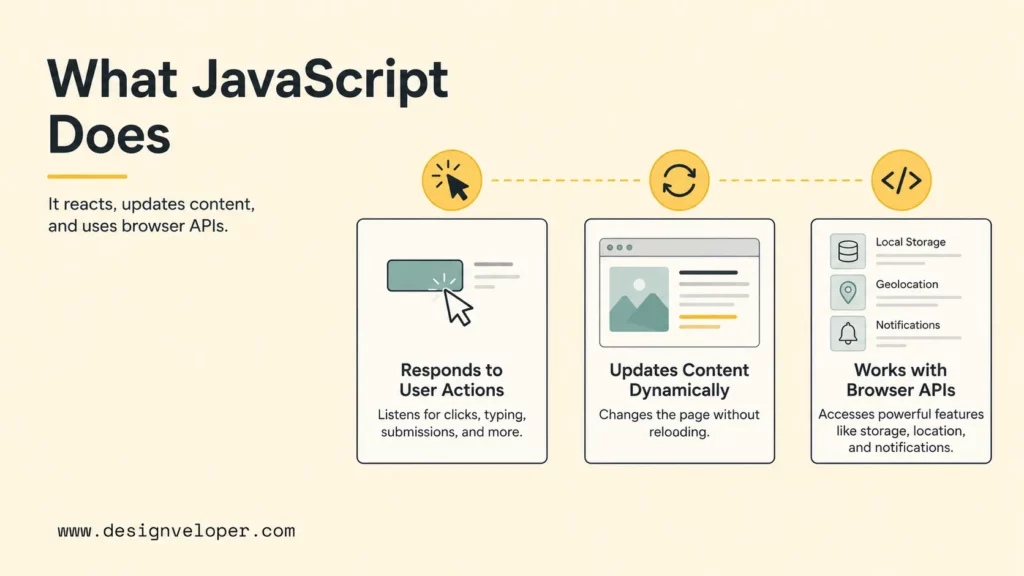
JavaScript turns a page into an interface by reacting to input, changing content, and connecting browser features to application logic. A static page can inform the reader, but JavaScript lets the reader do something: search, filter, calculate, preview, upload, navigate, validate, save, and collaborate.
Responds To User Actions
Most beginner JavaScript starts with user events. A user clicks a button, types into an input, selects a tab, changes a dropdown, submits a form, or scrolls to a new area. JavaScript listens for that event and runs code in response.
A small event listener shows the pattern:
const button = document.querySelector('#save-button'); button.addEventListener('click', () => { console.log('The user clicked Save.');});The MDN introduction to events recommends addEventListener() because the method keeps event-handling logic explicit and reusable. Beginners should practice this pattern early because events are the bridge between page elements and application behavior.
Updates Content Without Reloading
JavaScript can update part of a page without asking the browser to reload the whole document. That ability supports modern interactions such as search suggestions, comment feeds, dashboard widgets, product filters, live validation, chat interfaces, and single-page application routes.
The technical mechanism can be simple or advanced. A beginner may start by changing textContent on one element. A production application may use the browser Fetch API to request JSON from a server, then render a new list of results. Frameworks such as React, Vue, Angular, Svelte, and Next.js build larger patterns on top of the same need: keep the interface synchronized with application state.
Works With Browser Features And APIs
JavaScript can call browser APIs that expose useful features. The browser can provide storage, network requests, clipboard access, media capture, canvas drawing, notifications, geolocation, service workers, and accessibility-related interfaces. The MDN Web APIs reference is the practical map of what JavaScript can access in browser environments.
JavaScript should use browser APIs carefully. Permissions, privacy, performance, and browser support all matter. A location feature may need user consent. A heavy animation may hurt low-end devices. A form enhancement should still fail gracefully when a script does not load. Good JavaScript improves the experience while respecting the constraints of the browser and the user.
How JavaScript Works In The Browser
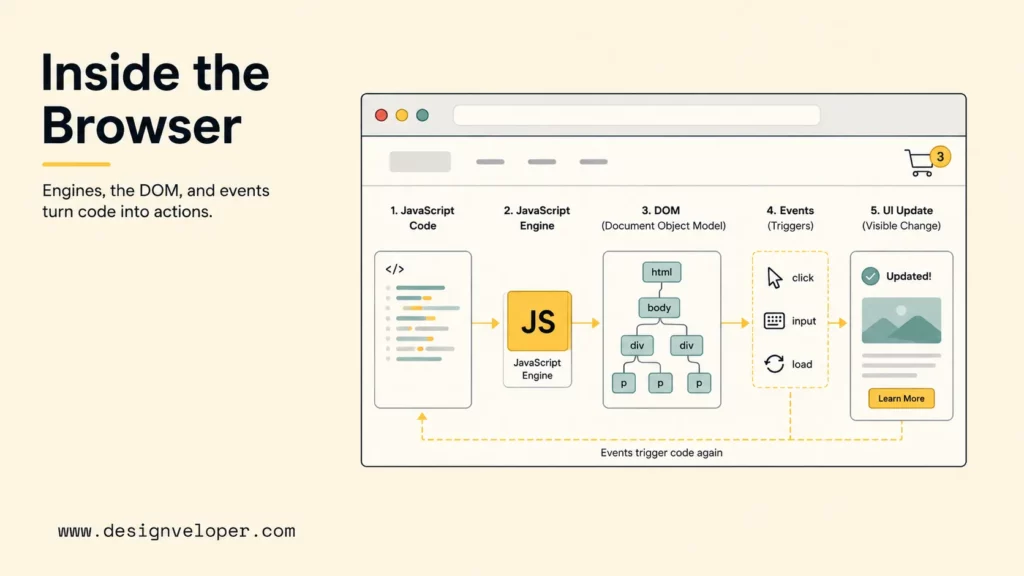
JavaScript works in the browser by running inside a JavaScript engine, accessing browser-provided APIs, and changing the page through the DOM when events or data updates occur. Beginners do not need to memorize engine internals, but they should understand the browser environment, the DOM, and the event-driven execution model.
Code Runs In The Browser Environment
Every major browser includes a JavaScript engine. Chrome and Edge use V8, Firefox uses SpiderMonkey, and Safari uses JavaScriptCore. The engine understands JavaScript syntax and executes code, while the browser environment supplies objects such as window, document, console, localStorage, and fetch.
The distinction between language and environment prevents confusion. A JavaScript array method such as map() belongs to the language. A DOM method such as document.querySelector() belongs to the browser environment. Node.js also runs JavaScript, but the official Node.js API documentation exposes server-side capabilities such as file systems, streams, HTTP servers, process control, and modules instead of a normal browser document.
The DOM Lets JavaScript Change The Page
The DOM is the browser’s object representation of the page. The MDN Document Object Model guide explains that the DOM represents a document as a logical tree and gives scripts methods for changing the document’s structure, style, and content.
A beginner can think of the DOM as the live version of the HTML file. JavaScript can select a node, read its text, add a class, create a new element, remove an old element, or change an attribute. For example, JavaScript can turn an empty status area into a useful message after a form is submitted:
const status = document.querySelector('#status');status.textContent = 'Your profile has been saved.';Direct DOM work is a useful learning step. Larger applications often use UI libraries to manage DOM updates more predictably, but the underlying goal is the same: turn application state into visible interface changes.
Events Trigger JavaScript Behavior
Events tell JavaScript that something happened. A button click, keyboard press, page load, network response, timer, animation end, or form submission can trigger code. JavaScript applications are therefore event-driven: the page often waits quietly until an event or data update gives the application a reason to run a function.
That event-driven model explains why ordering matters. JavaScript cannot safely attach a listener to an element that does not exist yet. JavaScript cannot display API data before the request returns. JavaScript cannot validate a form before the form fields are available. Beginners who understand events usually debug faster because they ask the right question: what event should run this code, and is the required element or data ready at that moment?
What A JavaScript Function Is
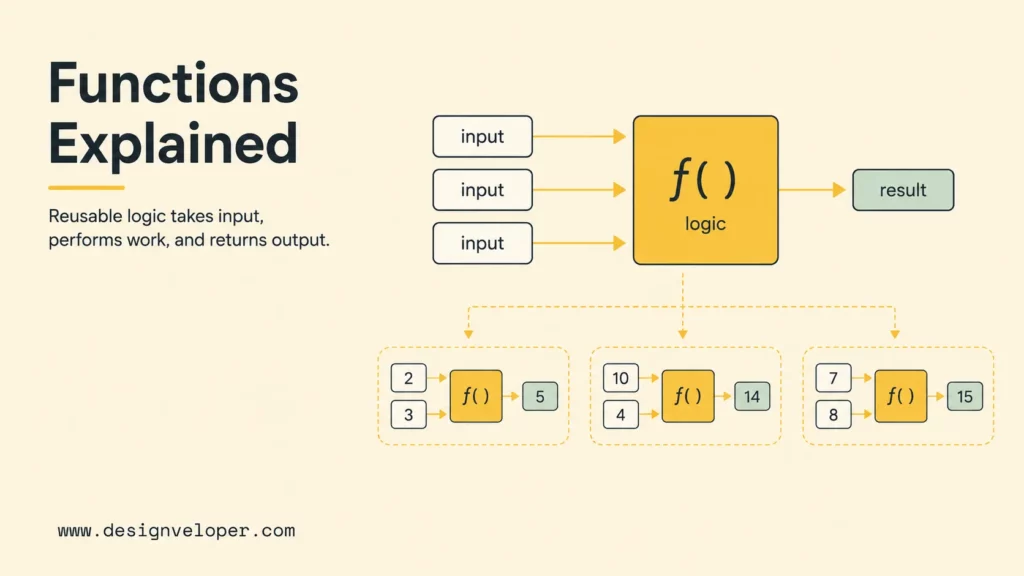
A JavaScript function is a named or unnamed block of reusable logic that can receive input, perform work, and optionally return a result. Functions keep JavaScript organized because the same behavior can be called from different events, modules, tests, or parts of an application.
Functions Group Reusable Logic
A function packages a task behind a clear name. Instead of writing the same discount calculation in three places, a developer can create one calculateDiscount() function and call the function whenever the page needs that result.
function calculateDiscount(price, percent) { return price - (price * percent / 100);}The function name should describe the result or action. Names such as validateEmail, showError, formatCurrency, toggleMenu, and fetchProducts help another developer understand intent before reading every line.
Parameters And Return Values
Parameters are the inputs a function receives. Return values are the outputs a function gives back. A function with clear parameters and return values is easier to test because the developer can call the function with a known input and check the output.
For example, an email validation function can accept one string and return a Boolean value:
function isBusinessEmail(email) { return email.includes('@') && !email.endsWith('@example.com');}A return value also prevents unnecessary coupling. The function does not need to know where the message appears on the page. Another part of the code can decide how to display the result. That separation makes JavaScript easier to reuse as a project grows.
Why Functions Matter In Everyday JavaScript
Functions matter because interactive pages repeat patterns. Validate input, format output, update state, show feedback, request data, handle an error, and render results are all repeatable tasks. Functions make those tasks explicit.
Functions also reduce risk. A bug fixed inside one shared function can improve every place that uses the function. A well-named function can replace a long inline event handler with a short readable instruction. A function with clear input and output can be tested before it is connected to the DOM.
Beginners should practice writing small functions before building large projects. A useful rule is: if code has a clear job and the job may happen again, turn the job into a function.
How To Add JavaScript To A Web Page
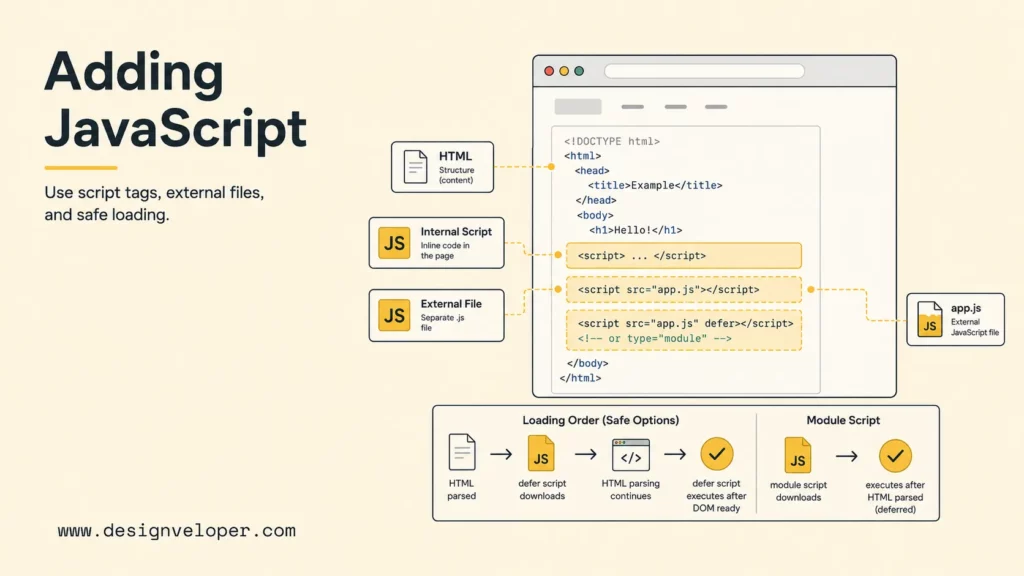
JavaScript can be added directly inside an HTML file or loaded from an external JavaScript file. External files are the better default for maintainable websites, while small internal scripts can be useful for demos, prototypes, or page-specific configuration.
Internal JavaScript
Internal JavaScript lives inside a <script> element in the HTML file. The script can appear in the document head or near the end of the body, but placement affects when the code runs.
<script> console.log('This script runs inside the HTML file.');</script>Internal JavaScript is convenient for a tiny example, but internal scripts become hard to manage when the code grows. The HTML file becomes crowded, caching is less effective, and reuse across pages becomes awkward.
External JavaScript Files
External JavaScript lives in a separate .js file and is connected with the src attribute on the script element.
<script src="/assets/app.js" defer></script>External files make the code easier to organize, cache, lint, test, bundle, and reuse. Teams usually split larger JavaScript projects into modules, then use build tools such as Vite, webpack, Rollup, or framework-specific tooling to produce optimized files for production.
Why Script Loading Order Matters
Script loading order matters because JavaScript may need the DOM or another script before it runs. The MDN script element documentation explains that classic scripts without async, defer, or type="module" are fetched and executed before the browser continues parsing. That blocking behavior can slow rendering or make code run before later elements exist.
The common beginner-safe options are:
- Use
deferfor external scripts that need the parsed DOM and should execute in document order. - Use
type="module"when working with JavaScript modules and modern import/export syntax. - Use
asynconly when a script can run independently and does not depend on document order. - Place small demo scripts near the end of the body when teaching older examples, while recognizing that
deferis cleaner for real files.
A script that runs too early may fail with errors such as Cannot read properties of null. That error often means JavaScript tried to select an element before the browser created the element in the DOM.
Common JavaScript Challenges Beginners Run Into
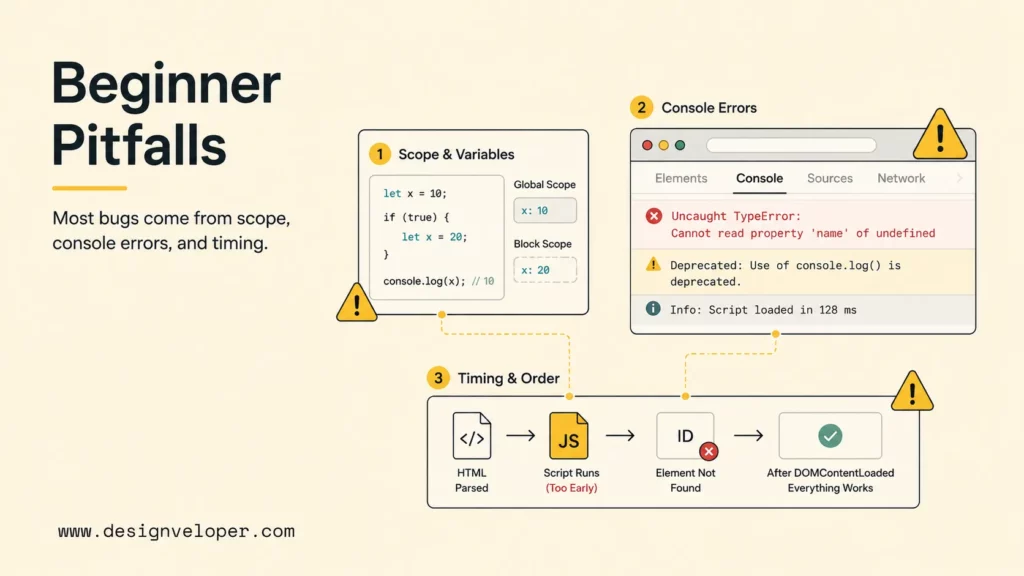
Most beginner JavaScript problems come from three sources: unclear variables and scope, unread console errors, and code that runs before the page or data is ready. The good news is that those problems become manageable when learners slow down and inspect what the browser is actually doing.
Variables And Scope
Variables store values, and scope controls where variables can be used. Beginners often create bugs by using a variable before it exists, reusing a vague name, or expecting a variable inside one function to be available everywhere else.
Modern JavaScript uses let and const instead of older var for most beginner code. A good habit is to use const by default, use let when the value must change, and avoid global variables unless there is a clear reason. Clear variable names also help: cartTotal is easier to debug than x.
Reading Errors In The Browser Console
The browser console is the beginner’s best debugging tool. The console shows syntax errors, runtime errors, network failures, warnings, and messages that developers print with console.log(). The Chrome DevTools Console documentation shows how the console helps developers inspect JavaScript output and troubleshoot page behavior.
A useful debugging routine is short:
- Read the first error message carefully.
- Open the linked file and line number.
- Check whether the value is what the code expected.
- Use
console.log()or the debugger to inspect the value. - Fix one error, reload, and test the same action again.
Beginners should avoid guessing from memory. The console usually tells the learner where the browser got stuck.
Keeping Code In The Right Order
JavaScript often fails when the code runs in the wrong order. A DOM selector may run before the HTML element exists. A function may use API data before the network request finishes. A script may depend on a library loaded later in the page.
The fix is to make dependencies explicit. Use defer for scripts that need the parsed DOM. Put dependent scripts in the right order. Use await or promise handling for asynchronous work. Keep event listeners separate from functions so the function can be defined first and called when the event happens.
How To Start Learning JavaScript
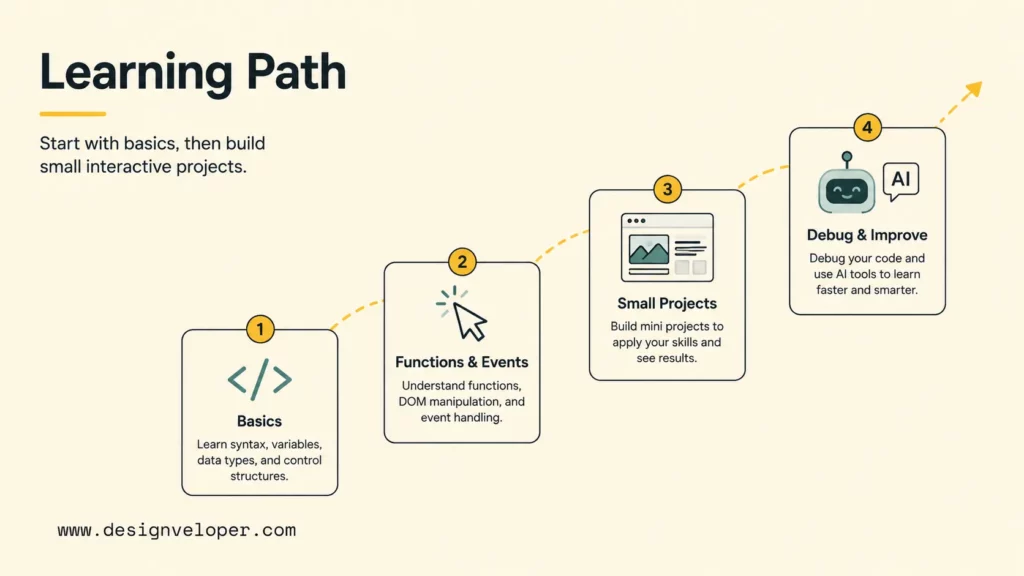
The best way to start learning JavaScript is to build small interactive behaviors while learning the language basics. Reading is useful, but JavaScript only becomes clear when the learner writes code, breaks code, reads errors, and fixes code in the browser.
Learn Variables, Conditions, And Loops First
Variables, conditions, and loops are the foundation. Variables store the current value. Conditions decide which path the code should take. Loops repeat work over arrays, lists, or counters. The MDN JavaScript first steps curriculum is a strong beginner path because it teaches syntax in the context of real browser examples.
A beginner should be able to read and write simple statements such as: if a password is shorter than eight characters, show an error; if the cart is empty, disable the checkout button; for each product in the result list, create a visible card.
Practice Functions And Events Early
Functions and events should appear early because JavaScript for the web is built around user actions. A learner can understand many useful features with only functions, events, selectors, conditions, and text updates.
Good early exercises include:
- A button that switches between light and dark themes.
- A password field that shows strength feedback while the user types.
- A tab interface that shows one content panel at a time.
- A character counter for a message box.
- A simple calculator that reads numbers from two inputs and displays the result.
Each exercise teaches the same production pattern: select elements, listen for events, read state, run a function, and update the interface.
Build Small Interactive Projects
Small projects teach better habits than oversized tutorials. A beginner who builds a quiz, to-do list, tip calculator, image gallery, weather widget, or expense tracker learns how JavaScript connects to real user workflows.
A practical project checklist helps keep scope under control:
| Project step | Beginner target | Proof that it works |
|---|---|---|
| Define the user action | One clear action such as add, remove, filter, or calculate | The action can be described in one sentence |
| Create semantic HTML | Buttons, labels, inputs, and result areas | The page still makes sense before CSS and JavaScript |
| Add JavaScript state | An array, object, or value that stores the current data | The console shows the expected value after each action |
| Render feedback | Visible text, classes, or list items update after events | The user sees a result without a full page reload |
| Test edge cases | Empty input, wrong format, duplicate action, or reset | The app shows a helpful message instead of breaking |
That checklist turns practice into a repeatable workflow rather than a collection of unrelated snippets.
Use AI Tools To Explain And Practice Code
AI tools can help beginners learn JavaScript faster when the learner uses them as tutors, not as replacements for practice. A useful prompt asks the AI tool to explain one error message, create a smaller exercise, or compare two versions of the same function. The learner should still type the final code, run the code, inspect the console, and explain the result in plain English.
The Stack Overflow 2025 AI survey section shows how common AI tools have become in development workflows, but popularity does not remove the need to understand fundamentals. Beginners should verify generated code with MDN, browser behavior, tests, and careful debugging.
A safe AI-learning loop is: ask for an explanation, predict what the code will do, run the code, compare the result, then rewrite the code without looking. That loop builds understanding instead of dependency.
How JavaScript Still Fits Modern Development
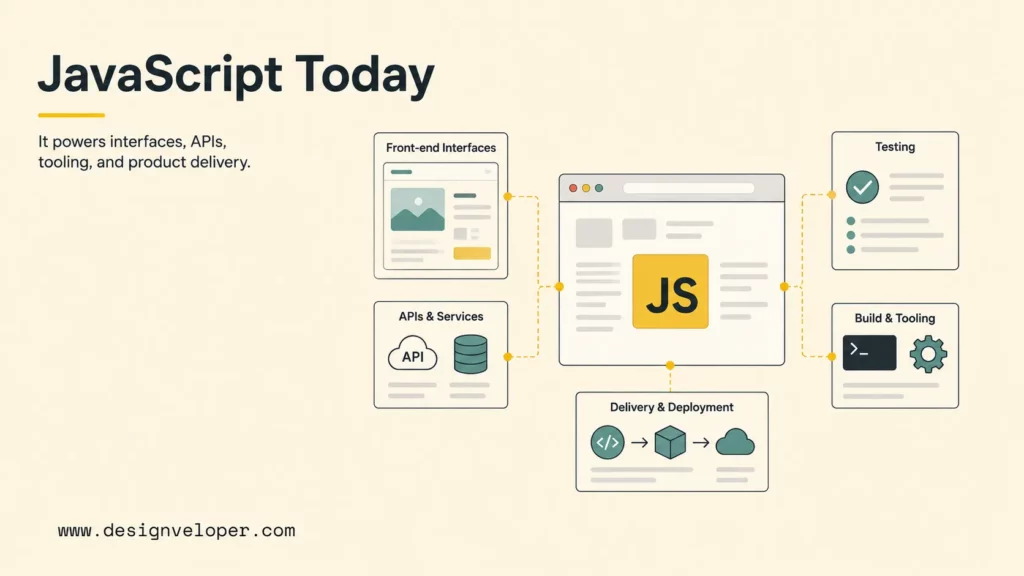
JavaScript still fits modern development because the browser remains a core application runtime and because the JavaScript ecosystem now spans front-end interfaces, server-side APIs, build tools, automated tests, design systems, mobile frameworks, and desktop applications. JavaScript is no longer only a small script added to a static page; JavaScript is also part of product architecture.
Modern teams often use JavaScript with TypeScript for stronger tooling, React or Vue for component-based interfaces, Next.js or Nuxt for full-stack web applications, Node.js for back-end services, Playwright or Cypress for browser testing, and package managers such as npm, pnpm, or Yarn for dependency management. The exact stack changes by project, but the core JavaScript concepts remain the same: values, functions, modules, events, asynchronous work, and clear state changes.
JavaScript also matters for performance and accessibility. A page that downloads too much JavaScript may feel slow, especially on mobile devices. A component that depends entirely on JavaScript without semantic HTML may become harder for assistive technology. A useful production rule is to start with semantic HTML, style with CSS, add JavaScript only where behavior is needed, and measure performance with browser tooling such as Lighthouse and the Performance panel.
At Designveloper, JavaScript usually appears as part of broader product engineering decisions rather than as an isolated language choice. Our web application development work often combines front-end frameworks, API integration, testing, CI/CD, observability, and maintainable UI patterns. Teams that need help turning JavaScript-heavy interfaces into production-ready products can explore Designveloper’s web development services and public software project portfolio for examples of digital product delivery.
The beginner takeaway is encouraging: learning JavaScript basics is still useful even when frameworks and AI tools are everywhere. Frameworks organize JavaScript. AI tools can explain JavaScript. Browsers execute JavaScript. A developer who understands the language can use all of those layers with better judgment.
FAQs About JavaScript
JavaScript FAQs usually come from naming confusion, front-end versus back-end scope, functions, AI-assisted learning, and what to study after the basics. The short answers below keep the beginner path practical.
What Is The Difference Between JavaScript And Java?
JavaScript and Java are different programming languages with different runtimes, ecosystems, syntax details, and common use cases. JavaScript is the native language of the browser and is standardized through ECMAScript. Java is a separate language commonly used for back-end systems, Android development, enterprise applications, and large service architectures.
The similar names are historically confusing, but beginners should not treat JavaScript as a lightweight version of Java. Learning JavaScript does not require learning Java first.
Can JavaScript Be Used For Back-End Development?
Yes. JavaScript can be used for back-end development through runtime environments such as Node.js. Node.js lets developers build web servers, APIs, command-line tools, real-time applications, and automation scripts with JavaScript. The browser gives JavaScript a document and Web APIs; Node.js gives JavaScript server-side APIs for networking, files, streams, and processes.
Back-end JavaScript is useful when a team wants one language across front end and back end, but the architecture still needs normal engineering discipline: security, authentication, validation, logging, database design, deployment, and monitoring.
What Does A JavaScript Function Do?
A JavaScript function groups reusable logic. A function can receive parameters, run statements, and return a result. In web pages, functions often validate form fields, calculate values, fetch data, update visible content, toggle CSS classes, or handle user events.
A good beginner function has one clear job. For example, formatPrice() should format a number, while renderProductCard() should create visible product markup. Clear function boundaries make code easier to read, test, and fix.
Can AI Help Beginners Learn JavaScript Faster?
AI can help beginners learn JavaScript faster when the learner asks for explanations, simpler examples, debugging help, and practice questions. AI becomes risky when the learner copies generated code without understanding what each line does.
A better workflow is to ask AI for a small hint, run the code in the browser, inspect the console, and then explain the code back in the learner’s own words. MDN, browser documentation, and actual runtime behavior should remain the source of truth when AI output looks suspicious.
What Should I Learn First After Basic JavaScript?
After basic JavaScript, learn DOM manipulation, events, asynchronous JavaScript, modules, Fetch, JSON, error handling, and browser debugging. Then build several small projects before choosing a framework. A learner who can build a form validator, searchable list, API-powered widget, and small stateful app will understand React, Vue, Svelte, or any other framework more easily.
The best next step is not memorizing every method. The best next step is building one small feature from start to finish: semantic HTML, CSS states, JavaScript events, functions, data handling, error states, and browser testing. That complete loop turns JavaScript from an abstract language into a practical tool for interactive software.
For businesses, the same principle scales. JavaScript creates value when it supports a real workflow, not when it exists for its own sake. If a product needs a faster dashboard, a clearer form flow, a better customer portal, or a maintainable web application, Designveloper can help connect JavaScript implementation to product goals, architecture, QA, and long-term maintainability.